
In conjunction with the technology spotlight in the April newsletter, here are a few sites that offer free-ware fonts for download:
If you're interested in purchasable fonts, here are a few sites to try as well:
As always, please be careful with any file that you download.
Showing posts with label technology. Show all posts
Showing posts with label technology. Show all posts
Wednesday, April 1, 2009

Tuesday, February 3, 2009
Tech Tuesday: Photography Tips

Were you surprised with a digital camera over Christmas? Have you been trying to take award-winning photos with it? Or at least figure out how the whole photography thing works? Do you need some tips to get started but don't want to pay for costly classes?
We can't promise to make you an award-winning photographer, but we can offer a few tips! In general, here are a few things to remember:
* Photography is best accomplished during daylight hours. Dawn and dusk are the ideal time because that is when the lighting is best, but if you aren't able to during those hours, using a shaded area or anytime on a cloudy day will also work. The key is to use indirect lighting. If you take a photo with light directly overhead, you will notice harsh shadows. If you can't find indirect light or a shaded area, the best thing to do is use your flash. It will help to subdue the intensity of the shadows.
* Move your camera rather than use the zoom, if you are able. If you do have to use the zoom, try not to zoom as high as the camera will let you. Most standard digital cameras have 3-6x optical zoom. Anything above that is digital zoom, which is the same as cropping a photo with photo editing software. Most images taken using the digital zoom will be grainy and blurry.
* Hold your shutter button down halfway for a second or two before taking the photo. This allows the camera to automatically adjust the exposure, focus, and white balance settings. If you notice on your camera's screen that the image is still blurry, you may be too close to the object to take a clear photograph. Most cameras can handle and detect focus up to 3" away from an object. If you are closer than 3", then the photo may turn out blurry.
Photographing people:
* Frame in the head and shoulders or a full body.
* Using a flash in a dark room will cause redeye. Use the redeye setting on your camera's flash, if it has one, to help combat this problem. Otherwise, try to avoid taking photos in a dark room or after dusk outside.
Photographing places:
* Try to remember the rule of thirds. This will help the composition of your photos. Imagine a grid of four lines, making nine squares on your viewfinder. Important elements in your photo should be placed along one of the lines or an intersection of two lines.
* Use a tripod when you can. This will allow for straighter photos and less blur in low-light situations.
Photographing things:
* Use a plain background, especially if you are wanting the main focus of the photo to be on the item you are photographing. For dark objects, a lighter background is ideal. For lighter objects, a darker background is ideal.
* Use good lighting. Try to take the photo during daylight hours and without a flash, if possible.
WGOM: Family Computing Program!

Milwood Magnet School has begun the implementation of its Family Computing Program. This program offers families the opportunity to take part in the construction of a computing system for personal usage. The intent of this program is to expose current Milwood Magnet School families to technologies offered by the school, as well as bridge the "Digital Divide." Through this program, families will be given exposure to multiple computer-based tools that include: the Parent Internet Viewer (PIV) system, the Milwood Magnet School web site, and teacher blogs. The FCP offers the opportunity for academic growth in 21st century skills, as well as provides tools for parental support through the demystification of technology.
For more information, or to apply to be a part of our Family Computing Program, please visit Milwood Magnet School's FCP page.
Tuesday, December 16, 2008
Tech Tuesday: Using the Drawing Toolbar in MS Word
Did you know that you can use the drawing toolbar in MS Word to do many things? You can also use this toolbar in other Microsoft Office programs, such as PowerPoint, but this slideshow focuses on MS Word for consistency.
Tuesday, December 9, 2008
Tech Tuesday: Microsoft Photo Story 3
This week's Tech Tuesday was a recap on the original session that taught Photo Story 3. Due to popular request, the class was offered once again. Please view the slideshow for a closer look at what was taught.
Tuesday, November 18, 2008
Technology Tuesday: MS PowerPoint
Technology Tuesday recap for our session on using MS PowerPoint:
There is also a PowerPoint brochure viewable via Acrobat Reader that offers step-by-step instructions on how to do many of the things discussed during our Tech Tuesday session.
There is also a PowerPoint brochure viewable via Acrobat Reader that offers step-by-step instructions on how to do many of the things discussed during our Tech Tuesday session.
Tuesday, November 11, 2008
How to: Student login and network storage
Attention Milwood students!
The computers and computer network at every school in the Kalamazoo Public School district is protected by network software. In order to use the computers and computer network, students are now required to login to the workstation before having access to it. Logging in not only provides you access to the computers functions, but also the functions of the network. Each student login account is created with storage space on the network servers.
At the beginning of the year, every student received a letter that included information about their username and password.
When you turn on a computer at Milwood, the first thing you see will  be the Novell login screen. This is where you will enter your username and password every time
you wish to use the computers. The first time you login, you will be notified that your password has expired and asked if you want to change it. Click "Yes" and choose a password that is at least five characters long, preferably a combination of letters and numbers. You will be prompted every forty days thereafter to change your password.
DO NOT SHARE YOUR PASSWORD WITH ANYONE!
When you are logged on to the KPS network, you will have additional drive letters available to your computer, most notably, the H: drive. This drive is your "home" on the server. You are the only student with access to it, and it is backed up every night. This drive is limited to 150 MB per student and is intended for homework and school-related projects only. KPS Technology Services will delete, without notice, any files not related to school work found on your H: drive.
Tuesday, November 4, 2008
Tech Tuesday: Digital Media & Content
Do you have a digital camera or one of the newer Flip Mino cameras and would like to know how to use it? Check out this short video about how to transfer digital content to your PC from digital media such as a digital camera or a digital video recorder.
If you're interested in the presentation, you can view it without the voice-over:
If you're interested in the presentation, you can view it without the voice-over:
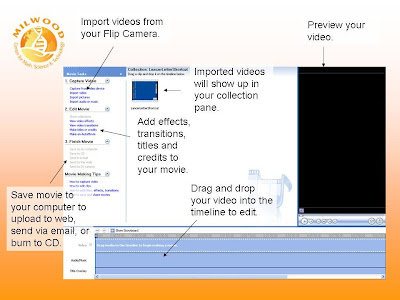
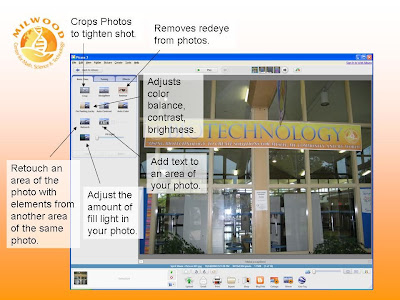
Here are a few images to help you navigate around Picasa and Windows Movie Maker, which are both programs we discuss in the lesson:
Tuesday, October 28, 2008
Tech Tuesday: Link the Lancer Letter Blog from your Desktop!
Make a shortcut to the Lancer Letter on your desktop! Not sure how? Watch this short video on making an Internet shortcut on your desktop!
Next week's Technology Tuesday will focus on transferring files from your digital and other cameras, so be sure to check back with us!
Tomorrow we will answer some of the frequently asked questions about Milwood Magnet School and Kalamazoo Public Schools. See you then!
Next week's Technology Tuesday will focus on transferring files from your digital and other cameras, so be sure to check back with us!
Tomorrow we will answer some of the frequently asked questions about Milwood Magnet School and Kalamazoo Public Schools. See you then!
Subscribe to:
Posts (Atom)
